Overview
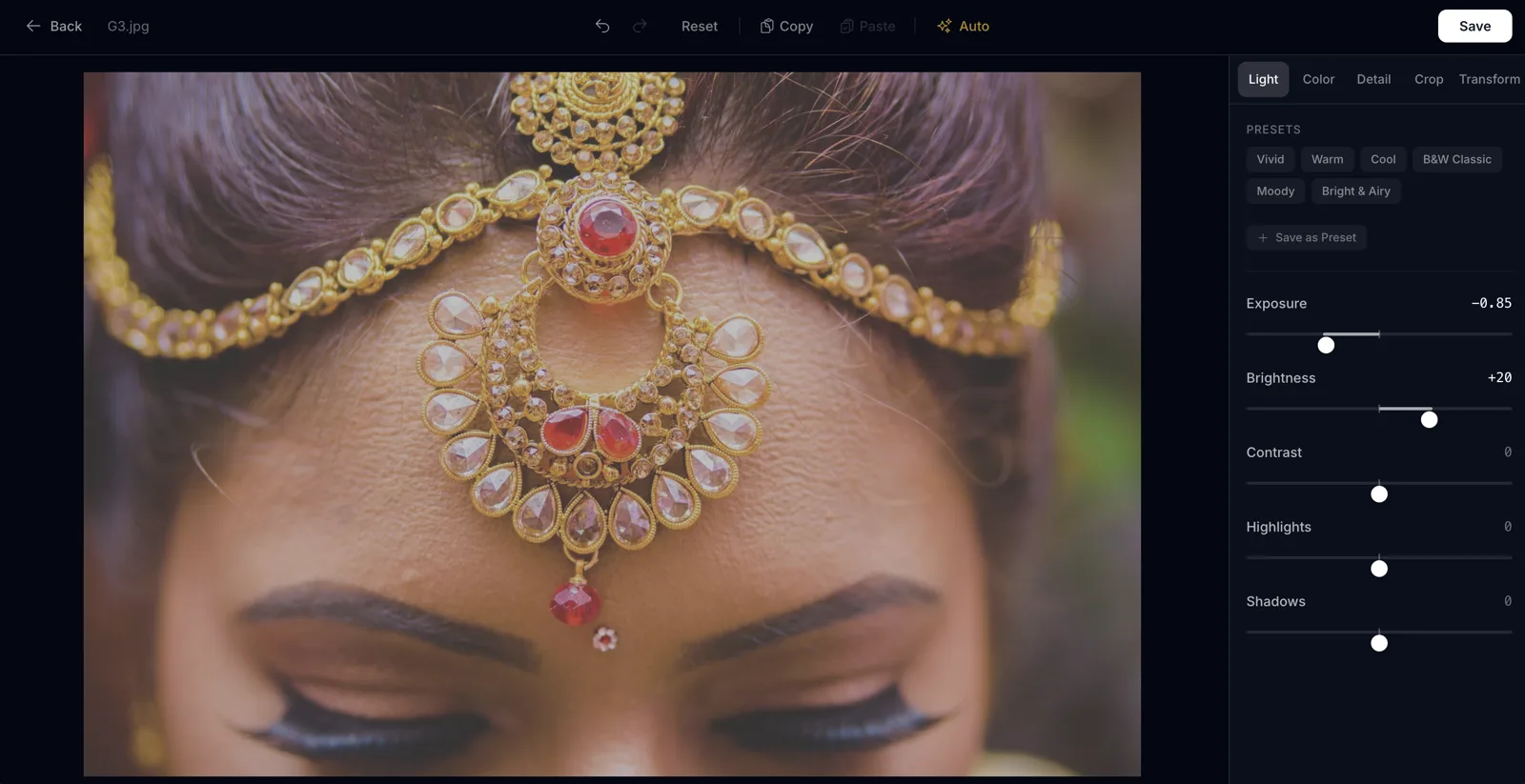
GetUrSnap's built-in photo editor eliminates the tedious cycle of downloading, editing in desktop software, and re-uploading. With full color grading controls — exposure, contrast, highlights, shadows, temperature, vignette, and more — you can edit your photos right where they live. Apply edits to one photo or batch-edit dozens at once. Save presets and reuse them across events. Everything is non-destructive, so your originals are always preserved.
The Problem
The traditional editing workflow is painfully inefficient: download RAW images from the cloud, import them into Lightroom, spend hours editing, export as JPEGs, upload the edited versions back to the cloud, then share with editors or clients. This cycle of uploading and downloading thousands of images across platforms wastes hours of productive time. And if you want to make a small adjustment after delivery, you have to repeat the entire process.
The Solution
GetUrSnap puts a professional-grade editor right in your browser. Adjust exposure, contrast, highlights, shadows, temperature, hue, and saturation — all in real-time with instant preview. If most of your photos were taken at the same location with similar lighting, create a preset with your preferred values and apply it to all images at once with bulk editing. The auto-enhance feature uses intelligent algorithms to set optimal values automatically, saving you from trying hundreds of combinations. All edits are non-destructive — your original files are always preserved.
Key Benefits
Full color grading suite
Exposure, contrast, highlights, shadows, temperature, hue, saturation, vignette, clarity, and sharpening — all in one place.
Batch editing
Apply the same edits to dozens or hundreds of photos at once. Perfect for photos taken in the same lighting conditions.
Custom presets
Save your favourite editing combinations as presets. Reuse them across events for a consistent look.
Non-destructive editing
Your original files are always preserved. Undo, redo, or reset any edit at any time — nothing is permanent.
How to Use
Follow these steps to get started with Photo Editing in your GetUrSnap dashboard.
Open the editor
Navigate to any photo in your event and click "Edit." The editor opens with the full adjustment panel on the right.
Adjust your settings
Use sliders to adjust exposure, contrast, highlights, shadows, temperature, and more. See changes in real-time on the preview.
Save as a preset (optional)
Happy with your settings? Click "Save Preset" and give it a name. You can apply this preset to other photos later.
Apply to multiple photos
Select multiple photos and click "Apply Preset" or "Copy Edits" to batch-apply your adjustments across the selection.
Auto-enhance
Not sure where to start? Click "Auto" and let the system intelligently set optimal values based on the image's characteristics.
Deep Dive
Why in-browser editing matters
Desktop editing tools like Lightroom are powerful but create friction. You need to download files, import them, edit, export, and re-upload. For a wedding with 5,000 photos, this workflow adds hours. GetUrSnap's in-browser editor eliminates every step of that cycle. Your photos are already on the platform — just click and edit. This is especially valuable for quick touch-ups after initial delivery: a client asks you to brighten a photo, and you can do it in 30 seconds without touching Lightroom.
Batch editing for consistent results
Wedding events often have large sets of photos taken in the same lighting conditions — 200 ceremony photos under the same mandap, 150 reception photos in the same banquet hall. Instead of editing each one individually, batch editing lets you dial in the perfect settings once and apply them to the entire set. This alone can save 2–3 hours per event, and the results are more consistent than editing each photo individually.
Pro Tips
Create presets for common scenarios: "Golden Hour Outdoor," "Indoor Warm Light," "Flash Photography." This speeds up your editing across events.
Use the auto-enhance as a starting point, then fine-tune from there. It gets you 80% of the way in one click.
Batch editing works best on photos shot in the same location and lighting. Group your photos by sub-event first, then batch-edit each group.